Basil is the Co-Founder and CTO of Simple Bundles, where he leads product strategy and development. With deep experience building scalable systems for merchants, he specializes in the technical and operational challenges for back-office operations.
Bundle tutorials
How to sell product bundles in your retail store with Shopify POS
A customer should be able to build the same bundle whether they're on your website or standing in your store.
Basil is the Co-Founder and CTO of Simple Bundles, where he leads product strategy and development. With deep experience building scalable systems for merchants, he specializes in the technical and operational challenges for back-office operations.
Here's something I hear a lot: "My bundles work great online, but when I try to sell them in my store, it's a mess."
Staff adding products one at a time. Manual discounts. Inventory that doesn't match up at the end of the day. The thing that feels so polished on your website turns into a workaround at the register.
When it comes to omnichannel retail, your customers expect consistency. If they can build a custom skincare set on your website, they expect the same experience when they walk into your store.
The real problem with bundles at the register
Most bundle apps were built for ecommerce. They assume every transaction happens through a checkout page, not a point-of-sale terminal. That creates a gap.
When a customer walks into your store and wants to build a custom gift box, what happens? Without the right setup, your staff has to manually add each item, calculate the bundle discount in their head, and hope they don't make mistakes.
Multiply that by a busy Saturday afternoon and you've got a recipe for errors, long lines, and frustrated employees.
The inventory side gets messy too. If bundles aren't breaking down properly at the POS level, you end up with inventory discrepancies between your online and retail channels. Your warehouse thinks you have 50 units of that bestselling serum, but 20 of them were sold as part of in-store bundles that never got recorded correctly.
How Simple Bundles connects with Shopify POS
Simple Bundles integrates directly with Shopify POS, but the setup depends on which bundle type you're using.
Simple bundle types are the easier scenario. These bundles automatically break down into their component SKUs when added to a POS cart. Your staff adds the bundle product, and the individual items appear as separate line items. No extra steps required.
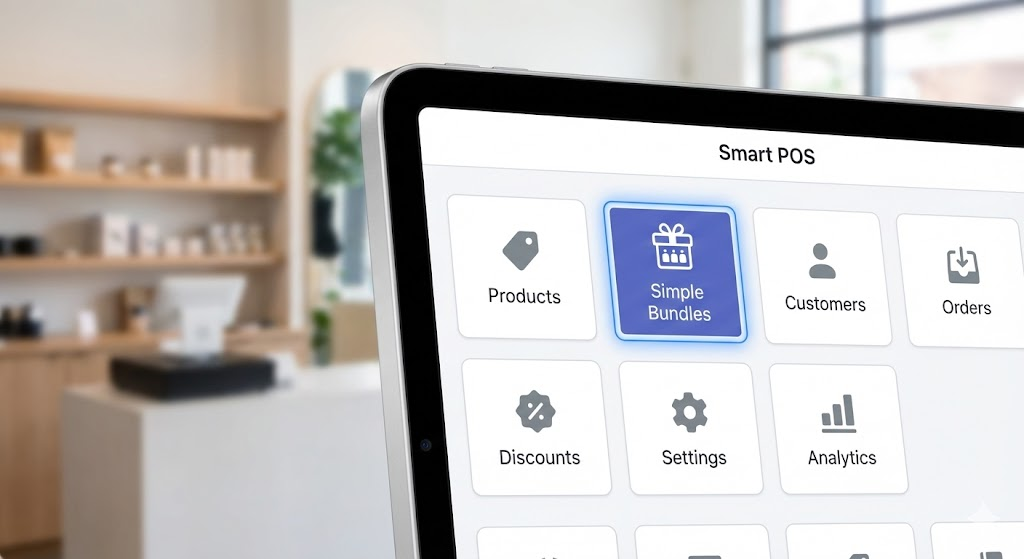
Infinite Options bundles are more flexible but need a bit more setup. These are your build-your-own bundles, where customers choose from multiple options. For these, you'll need to add the Simple Bundles app tile to your POS smart grid. This gives your staff a dedicated interface for configuring bundle options right at the register.
One important note: this feature is available on paid Simple Bundles plans. If you're on the free plan and want to use bundles in-store, you'll need to upgrade first.
The Simple Bundles tile on your POS smart grid gives staff one-tap access to bundle configuration.
That's it. The tile now appears on your POS home screen, ready for your staff to use whenever a customer wants to configure a bundle.
Position the tile somewhere easily accessible. If your store sells a lot of bundles, put it front and center. Your staff will thank you during the holiday rush.
The tap-to-configure workflow
This is where the recent updates make a real difference. The bundle configuration experience in POS used to require bouncing back and forth between screens. Now it's much more intuitive.
Here's how it works:
Add the bundle product to the cart (either by scanning or searching)
Open the cart view
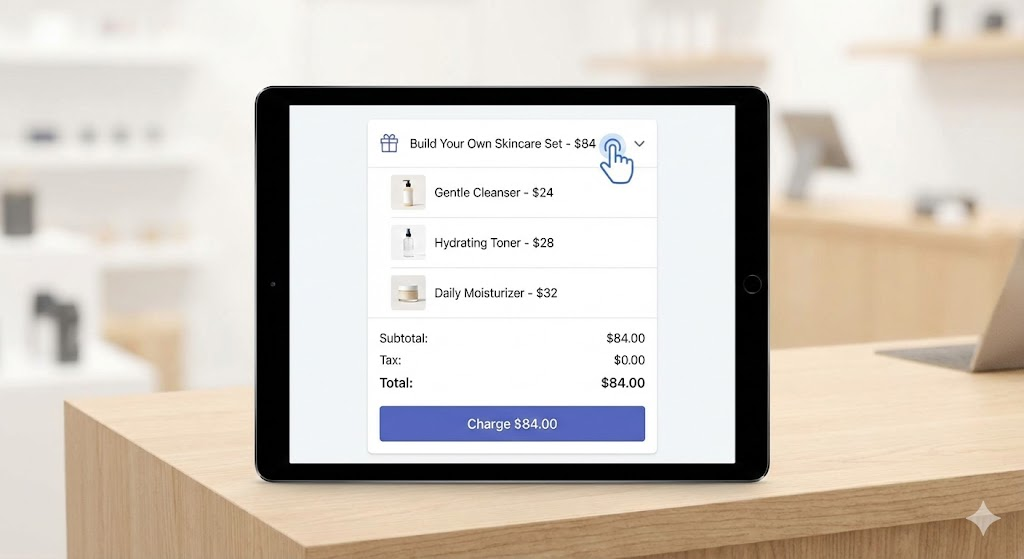
Tap directly on the bundle line item
The Simple Bundles extension opens automatically
Configure the customer's selections (sizes, colors, variants, whatever options your bundle offers)
Watch the bundle split into separate line items with the correct pricing
Make any edits if the customer changes their mind
Complete checkout as normal
Tap the bundle in your cart, configure options, and watch it split into individual line items with correct pricing.
The split line items feature is particularly useful for inventory accuracy. Instead of recording the sale as one opaque "bundle" product, each component gets tracked individually. Your inventory stays accurate across channels.
Need to add multiple bundles with different configurations? You can duplicate the bundle in the cart and configure each one separately. A customer buying three gift boxes with different products in each? No problem.
Training your retail staff
The technical setup is the easy part. The harder part is making sure your team actually uses it correctly.
Start with a quick training session that covers:
When to use the bundle selector. Not every product needs the app tile. Simple bundles break down automatically. The tile is specifically for Infinite Options bundles where customers choose their configuration.
How to troubleshoot common issues. If a bundle doesn't appear in the extension, have them reload the app first. If it still doesn't show, check that the bundle was actually added to the cart, and verify it's an Infinite Options bundle type (not a Simple bundle).
How to handle the sales attribution limitation. This is important. Simple Bundles currently isn't compatible with Shopify's sales attribution feature when using POS. If your store uses sales attribution, your staff will need to either disable it per transaction or you'll need to turn it off system-wide for POS sales. Decide which approach works for your business and train your team accordingly.
Create a simple one-page reference guide they can keep near the register. Something they can glance at when things get busy and they can't remember whether to use the tile or not.
When to use each bundle type in-store
Choosing between Simple bundles and Infinite Options bundles for your retail location comes down to how much flexibility customers need.
Simple bundles work best for:
Fixed sets that never change (like a "Starter Kit" with specific products)
Bundles where customers don't need to make choices
These break down automatically in POS. Your staff just adds them to the cart and moves on.
Infinite Options bundles work best for:
Build-your-own collections
Mix-and-match sets
Bundles with size, color, or scent variations
Any bundle where the customer configures their selection
These require the app tile, but they give customers the same flexibility they'd have online.
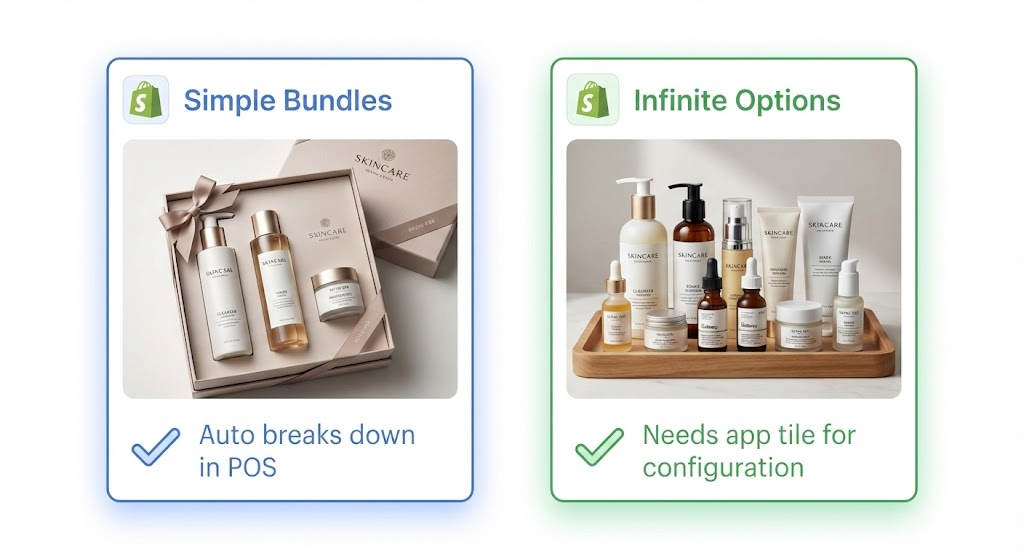
Simple bundles auto-break down in POS. Infinite Options bundles need the app tile for customer configuration.
If you're running both types, make sure your staff knows which products fall into which category. A quick reference list near the register helps.
Making omnichannel bundles work
The goal is simple: a customer should be able to build the same bundle whether they're on your website or standing in your store. Same products, same pricing, same experience.
With Simple Bundles and Shopify POS working together, that's actually achievable. Your online bundle strategy extends to retail without creating duplicate products, without manual workarounds, and without inventory chaos.
Learn how to choose between a discount app and a bundling app based on what you're trying to build. Plus, see how bundle pricing can work alongside Shopify discount codes, how to avoid accidental double-discounting, and why fulfillment should be part of the decision.
Learn why bundle analytics are harder to track than regular product analytics in Shopify and the key metrics brands should monitor. Discover practical ways to track performance through SKU-matching exports, built-in bundle analytics, AI-assisted analysis, Bundle Magic, and promo code attribution.
Stocky shuts down permanently on August 31, 2026. If you sell perishables, track batches or lots, manage expiry dates, or sell multi-SKU bundles, there are real gaps you need to plan around before the deadline.